
Why Does UV Printing Have White Lines?
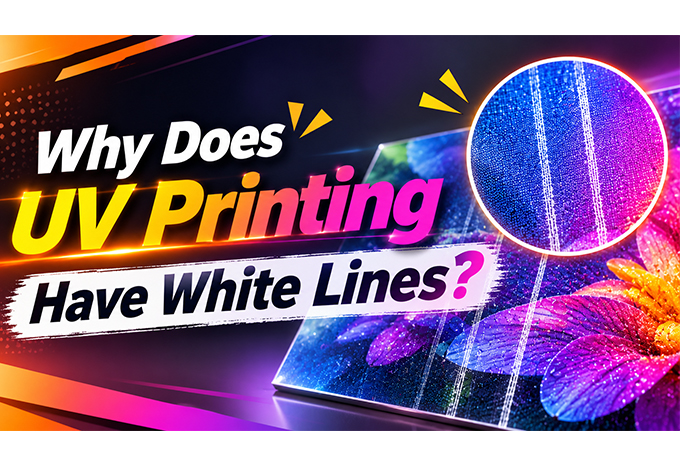
White lines in UV printing can affect image quality, color consistency, and the overall appearance of a finished product. These lines may appear as thin gaps, horizontal stripes, missing ink areas, or uneven bands across the printed surface.
If your UV printer suddenly starts producing white lines, the problem may be related to clogged printhead nozzles, incorrect printhead alignment, unstable ink supply, or unsuitable printing settings. Identifying the cause is the first step toward restoring consistent print quality.
In this guide, we explain why UV printing produces white lines, how to troubleshoot common printing defects, and what you can do to prevent them from happening again.
What Causes White Lines in UV Printing?
White lines usually appear when some areas of the printing process fail to deposit the correct amount of ink. The most common causes involve printhead performance, printer calibration, and ink delivery.
1. Clogged or Missing Printhead Nozzles
Clogged printhead nozzles are one of the most common reasons for white lines in UV printing.
A UV printhead contains many tiny nozzles that release ink onto the material. If some nozzles become blocked by dried ink, dust, or other contaminants, they may stop ejecting ink correctly. This creates missing lines or blank areas in the printed image.
Common signs include:
- Thin white lines running through printed images.
- Missing sections in solid color areas.
- Uneven color density.
- Visible gaps in text, graphics, or fine details.
How to fix it: Print a nozzle check pattern first. If missing nozzles are detected, follow the printer manufacturer's recommended cleaning procedure. Avoid performing excessive cleaning cycles, as they may waste ink and increase maintenance costs.
2. Incorrect Printhead Alignment
Printhead alignment problems can also cause white lines, especially when the printer uses multiple print passes.
If the printhead is not properly aligned, ink droplets may not land in their intended positions. This can create gaps between printing passes or produce uneven image edges.
Alignment problems may occur after:
- Moving or transporting the UV printer.
- Replacing or servicing a printhead.
- Changing printing parameters.
- Long-term use without calibration.
How to fix it: Run the printer's bidirectional and printhead alignment tests. Adjust the calibration settings according to the manufacturer's instructions, then print a test image to check whether the white lines have disappeared.
3. Incorrect Printing Pass Settings
The number of printing passes affects how ink is distributed across the material. If the pass settings are unsuitable for the image, material, or printing speed, small gaps may appear between ink deposition areas.
For example, high-speed printing with an unsuitable pass configuration may reduce image consistency. This can make white lines or horizontal banding more noticeable, particularly in large solid-color areas.
How to fix it: Try increasing the number of passes or reducing the printing speed. Compare the results using the same image and material. Choose a setting that provides the right balance between print quality and production efficiency.
4. Incorrect Printhead Height
The distance between the printhead and the printing material can affect ink placement.
If the printhead is positioned too far from the material, ink droplets may become less accurately placed. This can result in uneven edges, inconsistent coverage, or visible printing defects.
If the printhead is too close, the risk of the printhead touching the material may increase, especially when printing on uneven or thick objects.
How to fix it: Check the recommended printhead height for your printer and material. Make sure the printing surface is flat and securely positioned before starting the job.
5. Unstable Ink Supply
An unstable ink supply can cause inconsistent ink output during printing. If ink cannot flow smoothly to the printhead, some nozzles may not receive enough ink to produce consistent results.
Possible causes include:
- Low ink levels.
- Air entering the ink supply system.
- Blocked ink tubes or filters.
- Incorrect negative pressure settings.
- Problems with the ink circulation system.
How to fix it: Check ink levels, inspect the ink tubes and filters, and verify that the ink supply system is operating normally. If the problem continues, contact your printer supplier or technical support team.
How Can You Identify the Cause of White Lines?
Before changing printer settings or replacing components, perform a few basic checks. The appearance and position of the white lines can help you identify the source of the problem.
| Printing Symptom | Possible Cause | Recommended Action |
|---|---|---|
| Thin white lines across the image | Clogged or missing nozzles | Print a nozzle check and clean the printhead if needed |
| Horizontal bands or uneven stripes | Pass settings or calibration issues | Check alignment and printing parameters |
| White gaps between printed areas | Incorrect printhead alignment | Run printhead calibration |
| Inconsistent ink coverage | Unstable ink supply | Inspect ink tubes, filters, and pressure settings |
| Defects on uneven materials | Incorrect printhead height | Adjust material positioning and printhead height |
How Do You Fix White Lines in UV Printing?
If you notice white lines in your UV prints, follow these troubleshooting steps in order. This approach helps you identify common problems without making unnecessary adjustments.
Step 1: Print a Nozzle Check Pattern
Start by checking the printhead nozzle condition. A nozzle check pattern shows whether all ink channels are working correctly.
If some lines are missing from the test pattern, follow the recommended printhead cleaning procedure. Print another nozzle check after cleaning to confirm whether the issue has improved.
Step 2: Check Printhead Alignment
If the nozzle check is normal but white lines remain, inspect the printhead alignment. Run the printer's calibration process and check whether the printing passes overlap correctly.
Step 3: Review Printing Parameters
Check the resolution, printing speed, pass count, and other relevant settings in your RIP software or printer control system.
If necessary, test a slower speed or a higher pass count. Make one adjustment at a time so you can identify which setting improves the result.
Step 4: Inspect the Ink Supply System
Make sure there is enough ink and that the ink supply system is functioning properly. Check for visible air bubbles, blocked tubes, or filter problems.
Do not adjust pressure settings unless you understand the requirements of your specific printer model. Incorrect adjustments may create additional printing problems.
Step 5: Check the Printing Surface and Printhead Height
Make sure the material is flat, stable, and correctly positioned. Check the printhead height according to the recommended settings for the material being printed.
After completing these checks, print a test image with solid colors and fine details to confirm that the output is consistent.
How Can You Prevent White Lines in UV Printing?
Regular maintenance and proper operating procedures can reduce the risk of white lines and other UV printing defects.
1. Perform Regular Nozzle Checks
Check nozzle performance before important printing jobs, especially if the printer has been idle for an extended period. Early detection can help prevent larger print quality problems.
2. Keep the Printhead Clean
Follow the manufacturer's recommended printhead cleaning and maintenance procedures. Use compatible cleaning solutions and avoid touching sensitive printhead components.
3. Maintain a Suitable Working Environment
Dust, temperature changes, and unsuitable humidity conditions can affect printer performance. Keep the printing environment clean and operate the equipment within the environmental range recommended by the manufacturer.
4. Use Compatible UV Ink
Different UV printers and printheads may require specific ink formulations. Using compatible UV ink helps maintain stable ink delivery and consistent printing performance.
5. Check Printer Settings Before Production
Confirm the material profile, resolution, pass count, printhead height, and other important parameters before starting a production run. Saving tested settings for frequently used materials can also improve workflow consistency.
Are White Lines and Banding the Same in UV Printing?
White lines and banding are related printing defects, but they are not always the same problem.
White lines usually refer to visible gaps or missing ink areas in the printed image. They are often associated with nozzle problems or incorrect ink placement.
Banding refers to repeated horizontal or vertical stripes caused by uneven ink distribution, printhead movement, or printing calibration issues.
In some cases, banding may appear as alternating light and dark lines rather than completely white gaps. Identifying the pattern helps determine which part of the printing process needs attention.
When Should You Contact a UV Printer Technician?
Basic troubleshooting can resolve many common white-line problems. However, some issues require professional inspection.
Consider contacting a technician if:
- Repeated printhead cleaning does not restore missing nozzles.
- White lines remain after alignment and calibration.
- The ink supply system shows persistent pressure problems.
- The printer produces inconsistent results across different materials.
- You suspect printhead damage or an electronic control issue.
Before contacting technical support, prepare a nozzle check image, a sample of the defective print, and information about your current printing settings. These details can help technicians diagnose the problem more efficiently.
How Can Skycolor Help You Achieve Better UV Printing Results?
Consistent UV printing quality depends on the entire printing system, including printhead performance, ink compatibility, mechanical stability, and suitable operating parameters.
When choosing a UV printer, consider the materials you plan to print, the required production speed, image quality expectations, and long-term maintenance requirements.
Skycolor provides UV printing solutions for different printing applications. You can explore the available equipment and find a suitable solution for your production needs.
Frequently Asked Questions About White Lines in UV Printing
1. Why does my UV printer suddenly start printing white lines?
Sudden white lines are often caused by clogged printhead nozzles, unstable ink supply, or incorrect printing parameters. Start with a nozzle check to identify whether any nozzles are missing.
2. Can clogged nozzles cause white lines in UV printing?
Yes. When some nozzles cannot eject ink properly, blank areas may appear in the printed image. A nozzle check can help confirm whether clogged or missing nozzles are responsible.
3. Will increasing the printing pass count remove white lines?
Increasing the pass count may improve some banding or coverage problems, but it will not fix every cause of white lines. If nozzles are clogged or the ink supply is unstable, those issues must be addressed first.
4. How often should I clean my UV printer printhead?
Cleaning frequency depends on the printer model, ink type, usage, and working environment. Follow the manufacturer's maintenance schedule and perform nozzle checks regularly rather than relying on unnecessary cleaning cycles.
5. Can UV ink quality affect white lines?
Ink compatibility and quality can affect ink flow and printing stability. Always use UV ink that is compatible with your printer and printhead.
6. Why do white lines appear only on certain materials?
Different materials may require different printing profiles, printhead heights, and curing settings. Check the material profile and make sure the surface is flat and properly positioned.
Final Thoughts
White lines in UV printing are usually a sign that some part of the printing process is not working correctly. Clogged nozzles, printhead alignment problems, unsuitable pass settings, incorrect printhead height, and unstable ink supply are among the most common causes.
By performing regular nozzle checks, maintaining the printhead, reviewing printing parameters, and keeping the ink supply system in good condition, you can reduce printing defects and achieve more consistent results.
If white lines continue to appear after basic troubleshooting, consult your UV printer supplier or technical support team to identify the underlying issue.


