
Why Is My UV Printer Printing Blurry or Double Images?
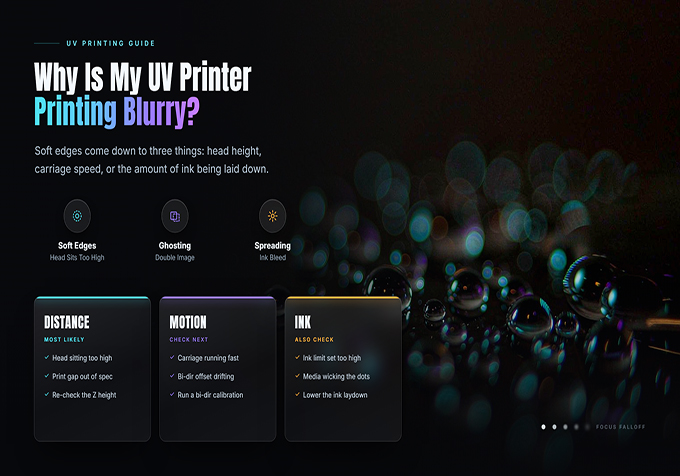
When a UV printer produces blurry images, fuzzy edges, shadows, or double images, even a well-designed file can look unprofessional. These defects can affect text, logos, fine lines, product graphics, and other detailed designs.
The cause is not always the printhead. Incorrect bidirectional alignment, an unstable substrate, unsuitable print height, or incorrect RIP settings can also affect image sharpness.
This guide explains how to identify common causes of blurry UV prints and how to troubleshoot them step by step.
1. What Causes Blurry or Double Images in UV Printing?
| Printing Symptom | Possible Cause | What to Check First |
|---|---|---|
| Text and edges look soft | Incorrect print height, unsuitable resolution, or artwork quality | Check the source file, print distance, and print mode |
| Image appears doubled or shadowed | Bidirectional alignment or substrate movement | Run the approved alignment test and secure the material |
| Fine details look uneven | Nozzle problems, unsuitable print settings, or material surface issues | Run a nozzle check and inspect the substrate |
| Print looks clear in some areas but blurry in others | Uneven substrate height or surface flatness | Check whether the material is flat and properly supported |
| Image quality changes between jobs | Different RIP settings, media, or print modes | Compare the current job with a known-good setup |
2. How to Fix Blurry UV Printer Output
Step 1: Check the Original Image and Print File
Before adjusting the printer, confirm that the source artwork contains enough detail for the intended print size.
- Check whether the image is low resolution or visibly pixelated when enlarged.
- Inspect small text, thin lines, and fine graphic elements in the original file.
- Confirm that the RIP software is using the intended artwork dimensions.
- Check for unexpected scaling or image conversion during file import.
- Compare the imported preview with the original design.
If the original file is already blurry, printer calibration alone will not restore missing image details. Use a higher-quality source file where possible and avoid enlarging low-resolution images excessively.
Step 2: Check Printhead Height and Material Flatness
Printhead distance can influence the accuracy of ink placement. If the printhead is too far from the material, ink droplets may land less precisely, which can make fine edges appear softer.
For UV flatbed printing, material flatness is especially important. A warped panel, uneven object, or poorly supported substrate can create inconsistent printing distances across the surface.
- Confirm that the material is positioned flat and securely.
- Check the substrate thickness and height using the procedure specified in the printer manual.
- Inspect the print area for raised debris or objects that could affect height measurement.
- Verify that the selected print height is appropriate for the actual material.
Safety note: Never adjust the printhead gap by guesswork. An incorrectly set height can cause a head strike and damage the printhead or substrate. Follow the machine's approved setup procedure.
Step 3: Check Bidirectional Printing Alignment
If a print looks like it has a shadow or a second image beside the main image, bidirectional alignment is one of the first things to investigate.
During bidirectional printing, the carriage prints while moving in both directions. If the two directions are not properly calibrated, the ink droplets may not land in the intended positions, producing doubled edges or a ghosting effect.
- Print the machine's designated alignment test pattern.
- Inspect the pattern using the procedure in the printer manual.
- Identify the alignment setting indicated by the test.
- Adjust the relevant parameter using the approved calibration process.
- Print the test pattern again to verify the result.
If the problem appears only during bidirectional printing, compare the result with a suitable unidirectional test mode if your machine supports it. If the unidirectional sample is clearer, alignment may need attention. Remember that unidirectional printing can be slower, so it is better used as a diagnostic comparison rather than an automatic permanent solution.
Step 4: Run a Nozzle Check
Missing or deflected nozzles can affect fine details and make the image appear uneven or unclear. A nozzle check helps determine whether ink is being ejected correctly before you change other parameters.
- Print a nozzle-check pattern using the machine's normal procedure.
- Compare the result with the reference pattern provided by the manufacturer.
- If lines are missing or deflected, follow the recommended maintenance procedure.
- Repeat the nozzle check before assessing image quality again.
A nozzle problem does not always produce a double image. If the nozzle pattern is normal but ghosting remains, investigate alignment, material stability, and print settings instead of repeatedly cleaning the printhead.
Step 5: Check the RIP Software and Print Mode
Incorrect job parameters can affect the appearance of printed details. If a problem occurs only with a particular file or job, compare its settings with a job that prints correctly.
Check the following:
- Print resolution and pass mode.
- Bidirectional or unidirectional printing selection.
- Media type and material thickness settings, where applicable.
- Artwork scaling and placement.
- Color profile and ink-limit settings if the problem also involves color density or excessive ink.
Change one parameter at a time and print a small test. Changing multiple settings simultaneously makes it harder to identify the actual cause.
Step 6: Make Sure the Material Does Not Move During Printing
Even correctly calibrated printing can look blurry if the substrate shifts during the job.
For UV flatbed printers, confirm that the vacuum table, fixture, or other approved holding method secures the material. For cylindrical or specially shaped objects, check the relevant fixture and positioning system.
- Remove dust or debris that may prevent the material from sitting flat.
- Check whether the substrate rocks, bends, or shifts when positioned.
- Use suitable jigs or positioning templates for repeat production.
- Verify that the material remains stable throughout the print.
Do not rely on the vacuum table alone when a material is warped, poorly supported, or unsuitable for the selected setup.
3. How to Identify the Cause of Double Images
Use the following symptom-based checks to narrow down the likely cause.
| What You See | Likely Direction to Investigate |
|---|---|
| A consistent shadow beside text or graphic edges | Check bidirectional alignment and the relevant calibration settings. |
| Blurry output across the entire image | Check source-file quality, print height, and print mode. |
| Only raised or uneven areas look blurry | Inspect material flatness, surface geometry, and print distance. |
| Image shifts or appears doubled between sections | Check material stability and any movement during printing. |
| Fine details are missing or broken | Run a nozzle check and inspect the source artwork. |
These symptoms are diagnostic clues, not definitive proof. More than one issue can occur at the same time, so verify each suspected cause with a controlled test.
4. How to Prevent Blurry UV Prints
- Use suitable source files and confirm the final print dimensions.
- Run routine nozzle checks according to the maintenance schedule.
- Verify bidirectional alignment when the print quality changes or after relevant maintenance.
- Keep the substrate flat, clean, and securely positioned.
- Use the correct print height for the material.
- Keep a record of proven RIP settings for recurring jobs.
- Test a sample after changing the material, print mode, or job setup.
5. When Should You Contact Technical Support?
If blurry or doubled output continues after you have checked the source file, material positioning, nozzle pattern, and approved alignment settings, further diagnosis may be necessary.
Before contacting technical support, prepare the following information:
- Printer model and printhead configuration.
- A photo of the defective print.
- The nozzle-check pattern.
- The RIP software and print mode being used.
- Whether the defect appears in every job or only with specific files or materials.
- Any recent maintenance, calibration, or software changes.
This information can help the technical team distinguish between a file issue, a calibration problem, a material-related issue, and a possible hardware fault.
Frequently Asked Questions
Why does my UV printer print double images?
Common causes include incorrect bidirectional alignment, material movement, or unsuitable print settings. Start with an alignment test and confirm that the substrate is secure.
Why is my UV printer text blurry?
Check the original file resolution, print dimensions, printhead height, nozzle condition, and print mode. If only small text is affected, also inspect whether the source artwork contains sufficient detail.
Will increasing the print pass count fix blurry images?
Not necessarily. A higher pass count may improve some aspects of image quality, but it will not correct incorrect alignment, a moving substrate, or a low-quality source file. Identify the cause before changing the print mode.
Why does my UV flatbed printer print clearly in some areas but blur in others?
Uneven material height, a warped substrate, or an unstable fixture can affect print distance across the surface. Check the material's flatness and positioning before changing calibration settings.
Conclusion
Blurry UV prints and double images can result from several different issues. The most effective troubleshooting process is to check the source file first, confirm material stability and print height, run a nozzle check, and then inspect bidirectional alignment and RIP settings.
By testing one factor at a time, you can narrow down the cause more efficiently and establish a repeatable setup for future jobs.
Looking for a UV printing solution for your production needs? Visit the Skycolor UV official website to explore available UV printer models and request more product information.


