
Why Is My UV Printer Printing White Lines? How to Fix Banding
Are you seeing white lines, horizontal stripes, or uneven color in your UV-printed images? These defects can make text look incomplete, reduce image quality, and cause finished products to fail inspection.
White lines in UV printing are often associated with missing or deflected nozzles, but they can also result from printhead alignment, ink delivery, print settings, or material movement. The right solution depends on the pattern of the defect and when it appears.
In this guide, Skycolor explains how to identify the possible causes of UV printer banding, what to check first, and how to restore consistent print quality without making unnecessary adjustments.
Why Is My UV Printer Printing White Lines?
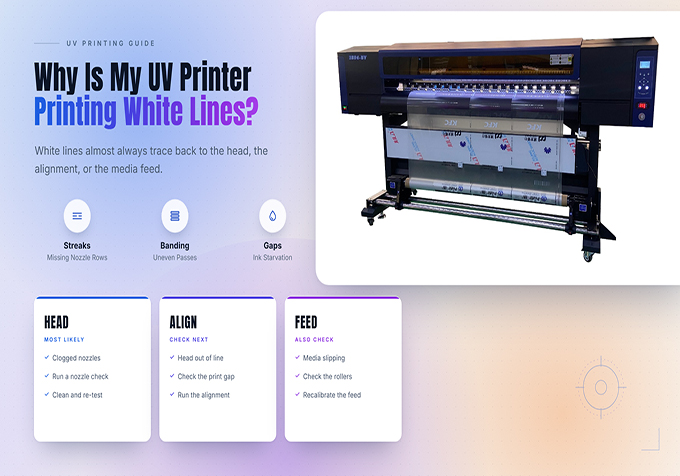
White lines usually appear when some areas of the printed image receive less ink than intended. However, not every white line is caused by a clogged printhead.
| Visible Symptom | Possible Cause | First Check |
|---|---|---|
| Thin white lines through solid colors | Missing nozzles or interrupted ink delivery | Run a nozzle check |
| Repeated horizontal stripes | Nozzle issues, feed movement, or print mode | Inspect the nozzle pattern and print settings |
| Light and dark bands alternating | Printhead alignment or ink deposition inconsistency | Check alignment and run a test print |
| White gaps that change between prints | Intermittent nozzle firing, ink supply, or material movement | Compare nozzle checks and inspect the material setup |
| Defects mainly in the white ink layer | White ink delivery, nozzle condition, or RIP layer settings | Check the white channel and artwork settings |
How to Fix White Lines in UV Printing: 6 Steps
Step 1: Run a Nozzle Check First
A nozzle check is one of the most useful first steps when diagnosing white lines in UV printing. It helps determine whether the printhead is firing ink consistently across the available channels.
Print the nozzle test using your printer's normal maintenance procedure, then inspect the pattern for:
- Missing segments or broken lines.
- Lines that appear bent or deflected.
- One color channel performing worse than the others.
- White ink output that is incomplete or inconsistent.
If the nozzle check is incomplete, investigate nozzle condition and ink delivery before changing color profiles or artwork settings. If the nozzle check is clean, move on to alignment, print mode, and material handling.
Step 2: Clean the Printhead Only as Recommended
If the nozzle test shows missing segments, follow the cleaning procedure specified for your UV printer. Depending on the model and the cause of the problem, an approved cleaning cycle may help restore normal ink output.
After cleaning, run another nozzle check and compare the results with the original pattern.
Keep these precautions in mind:
- Avoid repeatedly running intensive cleaning cycles without checking the results.
- Use only cleaning fluids and maintenance procedures approved for the printer and ink system.
- Do not touch the nozzle plate with hard tools or apply unapproved pressure to the printhead.
- If the pattern does not improve, check the maintenance system and consult a qualified technician.
Repeated cleaning may not solve problems caused by air in the ink line, a damaged component, unstable ink supply, or electrical faults.
Step 3: Check Printhead Alignment
If the nozzle test is normal but the finished image still shows repeated stripes, printhead alignment may need attention.
Incorrect alignment can cause adjacent passes to overlap incorrectly or leave small gaps between printed areas. This may become more visible in solid colors, gradients, and fine text.
To investigate:
- Print the alignment test specified in your printer's manual.
- Inspect the test pattern for doubled edges, gaps, or inconsistent lines.
- Follow the model-specific calibration procedure if the results indicate misalignment.
- Print another sample to confirm whether the defect has improved.
Do not change calibration values randomly. The correct adjustment depends on the printer structure and the specific alignment test.
Step 4: Review the Print Mode and Pass Settings
UV printers can produce different results depending on print resolution, pass mode, carriage speed, and the selected printing configuration. Some settings may make existing defects more visible, especially in solid-color areas.
If the nozzle test and alignment appear normal, try a controlled comparison using a higher-quality print mode supported by your printer.
Keep the artwork, material, and other settings unchanged during the comparison. If the banding becomes less visible, review the production mode and the printer's recommended settings for that application.
A higher-pass mode may improve the appearance of some prints, but it does not repair a blocked nozzle or an unstable ink supply. Diagnose the underlying cause before using print settings as a workaround.
Step 5: Check Material Position and Flatness
Material movement or an uneven surface can affect the consistency of UV printing. This is particularly important when printing on rigid products with different thicknesses or irregular surfaces.
Check the following before printing another sample:
- The substrate is flat and securely positioned.
- The vacuum table or fixture is working correctly, where applicable.
- The material thickness is within the printer's specified operating range.
- The printhead height follows the manufacturer's recommended setup.
- The surface is free from dust and loose particles that could interfere with printing.
If the problem occurs only with one material or one product shape, compare it with a known-good, compatible substrate. This can help determine whether the issue is related to material handling rather than the printhead.
Never move the printhead closer to the material without following the approved height-setting procedure. An incorrect gap can cause a head strike and damage the equipment.
Step 6: Inspect Ink Delivery and the White Ink System
If white lines appear intermittently or mainly affect one ink channel, check whether the ink supply is stable.
Depending on your printer configuration, possible areas to inspect include:
- Ink levels and any visible supply interruptions.
- Ink circulation or stirring functions, especially for white ink systems.
- Visible air bubbles, leaks, or abnormal ink flow, if inspection is permitted by the manufacturer.
- Maintenance components and filters that the operator is authorized to inspect.
- White ink settings and layer generation in the RIP software.
White ink defects can result from both hardware and software issues. If the nozzle check is normal but the white layer is missing or positioned incorrectly, verify the RIP configuration and artwork rather than assuming the printhead is blocked.
If you notice leaking ink, electrical warnings, or abnormal pressure, stop the machine according to its operating procedure and contact technical support. Do not disassemble pressurized ink components or electrical systems unless qualified to do so.
Why Do White Lines Appear Even After Cleaning?
Cleaning does not address every possible cause of banding. If the problem returns immediately after a cleaning cycle, use the following troubleshooting guide instead of repeating the same action.
| What You Observe | What It May Mean | Next Action |
|---|---|---|
| Nozzle test improves, then deteriorates | An intermittent ink supply or maintenance issue may exist | Inspect the approved ink delivery and maintenance system |
| Nozzle test is normal but banding remains | Alignment, print mode, or material movement may be involved | Run alignment tests and compare controlled print modes |
| Only one color has visible gaps | The affected channel may have an ink delivery or nozzle issue | Inspect the corresponding nozzle pattern and channel |
| Only one substrate shows the defect | Material flatness, surface condition, or handling may be responsible | Test a compatible reference material |
| The same defect persists after basic checks | A mechanical, electrical, or ink system fault may require service | Document the defect and contact qualified technical support |
How to Prevent Banding in UV Printing
Perform Regular Nozzle Checks
Follow the maintenance schedule recommended for your printer. A nozzle check before important production jobs can help identify missing lines before they affect an entire batch.
Keep the Printing Environment Stable
Temperature, humidity, and dust can influence ink behavior and equipment performance. Maintain the environment within the operating range specified by the manufacturer, and avoid making adjustments based on general recommendations that may not apply to your machine.
Use Compatible Ink and Approved Consumables
Ink compatibility matters for reliable ink delivery and consistent print quality. Use ink and cleaning products approved for your printer, and follow the specified storage and handling procedures.
Maintain Consistent Material Positioning
Use appropriate fixtures and positioning procedures for repeat jobs. Check the material surface and printhead gap before production, particularly when changing between substrates of different thicknesses.
Keep a Record of Printing Defects
Record the affected color, nozzle check results, material type, print mode, and changes made during troubleshooting. These records can help distinguish recurring maintenance issues from problems related to specific materials or settings.
UV Printer White Lines: Quick Troubleshooting Checklist
Before restarting a large production job, confirm that you have completed the relevant checks:
- ☐ Run and inspect a nozzle check.
- ☐ Follow the approved cleaning procedure if missing nozzles are detected.
- ☐ Check printhead alignment if the nozzle pattern is normal.
- ☐ Compare print modes without changing several variables at once.
- ☐ Verify material flatness, positioning, and printhead height.
- ☐ Inspect the ink delivery and white ink settings where relevant.
- ☐ Print and approve a new sample before resuming full production.
Frequently Asked Questions
1. Why is my UV printer leaving white lines in the image?
Common causes include missing or deflected nozzles, unstable ink delivery, incorrect alignment, and material movement. Start with a nozzle check to determine whether the printhead is firing correctly.
2. Can low-quality print settings cause horizontal banding?
Yes. Depending on the printer and application, the selected pass mode or carriage settings can make banding more visible. However, missing nozzles and alignment problems should be ruled out before changing the print mode.
3. Why does my UV printer print white lines in only one color?
This may indicate a problem affecting a particular ink channel, such as missing nozzles or inconsistent ink delivery. Compare the nozzle check for each color and follow the manufacturer's troubleshooting procedure for the affected channel.
4. Why does white ink look uneven on my UV printer?
Uneven white ink can be associated with nozzle performance, ink circulation, supply stability, or incorrect white-layer settings. Check the nozzle pattern and verify the RIP configuration before making hardware adjustments.
5. Should I replace the printhead if white lines remain?
Not immediately. A printhead replacement should be considered only after the relevant nozzle, ink delivery, alignment, and maintenance checks have been completed. Persistent defects should be assessed by qualified technical support before replacing expensive components.
Conclusion
White lines and horizontal banding in UV printing can have several different causes. The most effective troubleshooting approach is to identify the defect, run a nozzle check, and then investigate alignment, print settings, material handling, and ink delivery in a controlled order.
Avoid changing multiple settings at once or repeatedly cleaning the printhead without checking the results. A systematic process can help reduce wasted materials, shorten troubleshooting time, and maintain more consistent output quality.
Need Help with Your UV Printing Application?
Skycolor provides UV flatbed and roll-to-roll printing solutions for a wide range of applications. Visit our official website to explore our equipment or contact our team for assistance with your printing requirements.
Website: www.skycoloruv.com
Product Information: Explore Skycolor UV Printers


