
What File Format Is Best for UV Printing?
Have you ever sent a design to a UV printer only to discover that the edges look jagged, the colors appear different from the screen, or a white background shows up where it should be transparent?
These problems are not always caused by the printer. Incorrect artwork settings, low-resolution images, missing fonts, and poorly prepared white ink layers can all affect the final result.
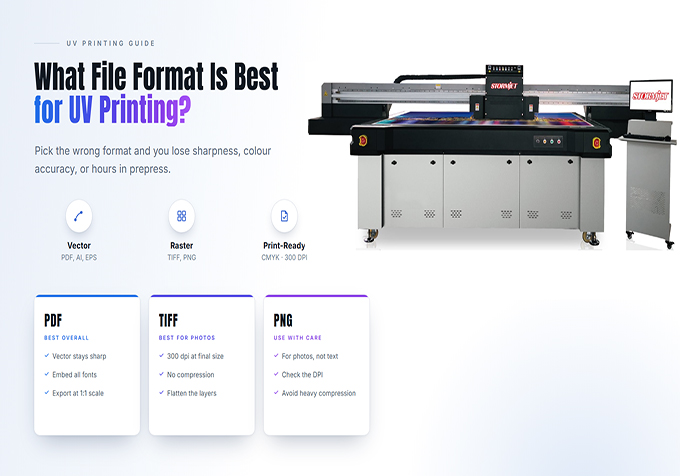
For most UV printing jobs, vector formats such as PDF and AI are excellent choices for logos, text, and illustrations, while high-resolution PNG or TIFF files work well for raster artwork. The best format depends on your design, substrate, RIP software, and printing requirements.
This guide explains how to choose a file format and prepare artwork for more reliable UV printing.
What File Formats Can You Use for UV Printing?
UV printers typically work with artwork processed through RIP software. Supported formats vary by software and workflow, so always confirm compatibility with your printer before preparing a large production job.
| File Format | Best For | Key Consideration |
|---|---|---|
| Logos, text, layouts, and mixed vector-raster artwork | Check fonts, transparency, embedded images, and spot-color support. | |
| AI | Editable vector designs and layered artwork | Confirm that the RIP supports the file or export a compatible PDF. |
| SVG | Scalable logos, icons, and simple vector graphics | Effects, fonts, and transparency may be interpreted differently by different RIPs. |
| PNG | Transparent artwork, logos, and raster graphics | Check pixel dimensions and transparent areas at the final print size. |
| TIFF | High-quality photographs and detailed raster artwork | Use sufficient resolution and confirm the supported color mode. |
| JPG / JPEG | Photographs and designs without transparent backgrounds | Compression may introduce artifacts, and transparency is not supported. |
Which File Format Should You Choose?
1. Choose PDF for Mixed Artwork and Production Layouts
PDF is a practical choice when a design contains vector graphics, text, and placed images. It can preserve page dimensions and many important design elements in a portable file.
Before exporting, check that linked images are embedded, fonts are embedded or converted to outlines where appropriate, and transparency is preserved correctly. If your artwork uses spot colors for white ink or varnish, confirm that the export settings and RIP workflow retain those instructions.
2. Choose AI or SVG for Scalable Vector Graphics
Vector artwork is particularly useful for logos, lettering, line art, icons, and geometric shapes. It can be resized without the pixelation associated with enlarging a low-resolution raster image.
For example, a vector company logo can be adapted for a small promotional item or a larger sign without rebuilding the artwork from scratch.
However, vector artwork is not automatically error-free. Missing fonts, unsupported effects, transparency issues, and incorrect spot-color definitions can still create problems. Convert text to outlines when appropriate and inspect the exported file before production.
3. Choose PNG for Transparent Backgrounds
PNG is useful when you need to print a logo, icon, illustration, or product graphic without a rectangular background. Its alpha channel can preserve transparent areas around the artwork.
This is especially helpful when preparing designs for clear acrylic, colored objects, or personalized products. However, transparency in the artwork file does not automatically create a correct white ink underbase. The RIP software and print workflow must handle that separately.
4. Choose TIFF for High-Quality Raster Images
TIFF is often suitable for photographs, detailed textures, and high-quality raster artwork. Depending on the software, it can preserve image detail and avoid the lossy compression associated with JPEG.
Before printing, confirm the image's actual pixel dimensions, color profile, and compatibility with your RIP software. A large file is not necessarily a high-quality file if its source image has already been enlarged or blurred.
What Resolution Is Best for UV Printing?
For many detailed UV printing applications, 300 pixels per inch (PPI) at the final print size is a useful starting point for raster artwork. Larger-format designs viewed from a greater distance may not require the same resolution. The appropriate setting depends on the image, viewing distance, print size, and RIP workflow.
Remember that image resolution and printer output resolution are different measurements. A printer's advertised DPI does not restore detail that is missing from the source image.
How to Calculate the Required Image Size
Use this formula:
Required pixel dimension = Final print dimension in inches × Target PPI
| Final Print Size | Pixels at 300 PPI |
|---|---|
| 2 × 2 inches | 600 × 600 px |
| 4 × 6 inches | 1200 × 1800 px |
| 8 × 10 inches | 2400 × 3000 px |
These figures are practical examples, not universal minimum requirements. If the original artwork is too small, increasing its resolution in an editing program cannot recreate missing detail. Whenever possible, obtain the original high-resolution image or vector file.
How to Prepare White Ink Layers for UV Printing
White ink is important when printing on dark, colored, or transparent substrates. Without a suitable white layer, CMYK colors may appear less vivid because the substrate can influence the appearance of the ink.
Step 1: Identify Where White Ink Is Needed
Decide whether the design requires a white underbase beneath the color artwork, a separate white graphic, or selective white areas. The correct setup depends on the substrate and the intended visual effect.
Step 2: Check the RIP Software Workflow
Some RIP software can generate a white underbase from the artwork's transparency or selected regions. Other workflows require a dedicated spot-color channel, a separate layer, or a specific naming convention.
Do not assume that a layer named "White" will automatically map to the printer's white ink channel. Follow the exact instructions for your RIP software and printer configuration.
Step 3: Check the Printing Order
The order of white and color layers depends on the substrate, viewing direction, and application. Printing on a dark opaque object often uses white beneath the color artwork. Printing on transparent materials may require a different sequence depending on whether the design is viewed from the front or the reverse side.
Step 4: Print and Inspect a Sample
Before starting a large order, print a small sample to confirm white coverage, color appearance, registration, and the intended layered effect. Adjust the artwork or RIP settings if the result does not match the approved design.
Common UV Artwork Preparation Mistakes
| Mistake | Possible Result | How to Prevent It |
|---|---|---|
| Using a low-resolution image | Blurry edges and pixelation | Use original artwork at the intended print size. |
| Saving transparent artwork as JPEG | An unwanted solid background | Use PNG or a compatible format that preserves transparency. |
| Missing or substituted fonts | Changed lettering and text alignment | Embed fonts or convert text to outlines when appropriate. |
| Incorrect white ink setup | Faded colors or unwanted white areas | Verify white-channel mapping and print order in the RIP. |
| Incorrect artwork dimensions | Misaligned or incorrectly sized output | Set the final dimensions and verify positioning before printing. |
UV Printing File Preparation Checklist
Use this checklist before sending artwork to your UV printer:
- ☐ The file format is supported by the RIP software.
- ☐ The artwork dimensions match the intended print size.
- ☐ Raster images have sufficient resolution at the final size.
- ☐ Fonts and linked images are correctly embedded or prepared.
- ☐ Transparent backgrounds are preserved where required.
- ☐ The color profile and color conversion workflow are appropriate.
- ☐ White ink and varnish instructions are correctly configured, if needed.
- ☐ The print position and orientation have been checked.
- ☐ A sample print has been approved before mass production.
Frequently Asked Questions
1. Is PDF or PNG better for UV printing?
PDF is often a good choice for vector artwork, text, and mixed layouts. PNG is useful for raster graphics that need transparent backgrounds. The better option depends on your artwork and RIP software.
2. Can I use a JPG file for UV printing?
Yes. JPG files can work well for photographs and designs without transparency. However, JPEG compression can introduce artifacts, and JPG does not support transparent backgrounds.
3. Do I need 300 DPI for UV printing?
Around 300 PPI at final size is a useful starting point for detailed raster images, but it is not a universal requirement. The necessary resolution depends on the image, print dimensions, viewing distance, and production workflow.
4. Why does my UV print have a white background?
This may happen when the source file has a solid background instead of transparency, or when the RIP generates a white ink layer across the wrong area. Inspect the artwork's alpha channel and verify the white-channel settings.
5. Do I need a separate white ink layer?
Not always. Some RIP software can generate the white layer automatically, while other workflows require a separate layer or spot-color definition. Follow the instructions for your specific printer and software.
Conclusion
Choosing the right file format and preparing artwork correctly can help reduce printing errors, improve edge quality, and make UV production more predictable.
For logos and vector graphics, consider PDF or AI. For transparent raster artwork, PNG is often a practical choice. For detailed photographs, high-quality TIFF or JPEG files may be suitable, provided the resolution and compression meet your requirements.
Most importantly, confirm file compatibility with your RIP software, check white ink settings when necessary, and approve a test print before starting a large order.
Need a UV Printer for Your Production?
Skycolor offers UV flatbed and roll-to-roll printing solutions for businesses working with a variety of materials and applications. Contact our team to discuss your production needs and find a suitable printing solution.
Email: sale@skycoloruv.com
WhatsApp: +86 177 0063 9356
Website: www.skycoloruv.com


